
Some applications are not signed by Apple and will not be able to be installed. If you trust the application and know you want to install it, follow these steps to allow third party apps to install.
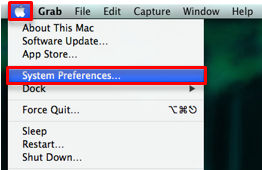
- Open "System Preferences" by clicking on the Apple icon and choosing that option.
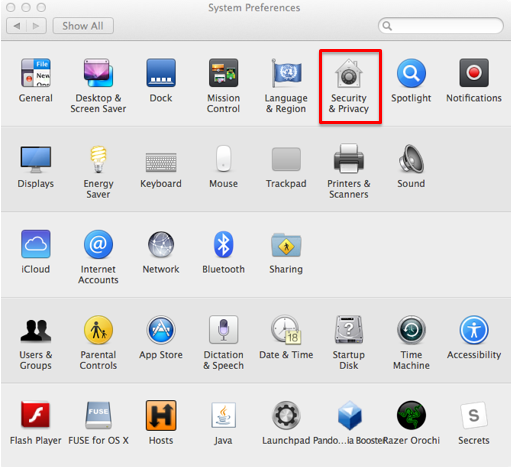
- Select "Security & Privacy" from the "System Preferences" window.
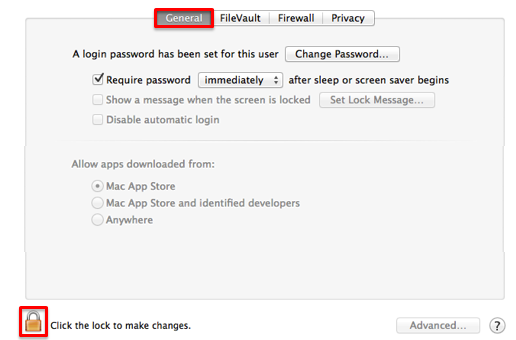
- Select the "General" tab, and select the lock in the lower left corner to allow changes.
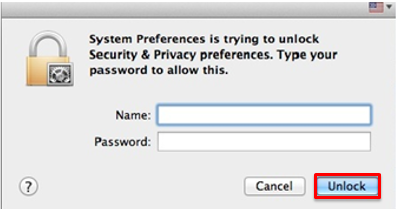
- Enter your computer username and password, then select "Unlock."
- In the "Allow apps downloaded from:" section, select the radio button to the left of "Anywhere."
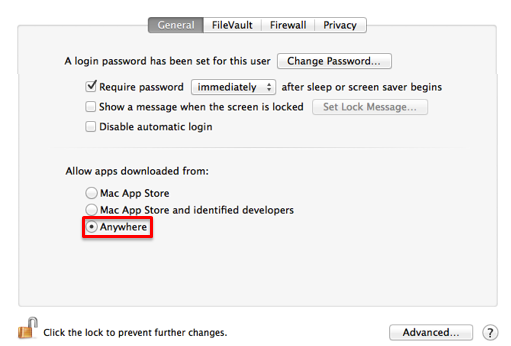
- Close the window. You can now install unsigned applications that you trust.
- For security reasons, you may want to repeat this process checking "Mac App Store" on step five in order to turn this feature back off.
I’ve been exploring for a little for any high quality articles or blog posts on this kind of area . Exploring in Yahoo I at last stumbled upon this website. Reading this info So i’m happy to convey that I’ve a very good uncanny feeling I discovered just what I needed. I most certainly will make sure to don’t forget this website and give it a look regularly. macbook mockups
ReplyDeleteYour website provided us with valuable information to work on. You have done an impressive job and our whole community will be grateful to you. macbook template
ReplyDeletehey, your internet site is excellent. We do appreciate your work mockup phone
ReplyDelete