Showing posts with label Mac Osx. Show all posts

Thursday, 21 March 2019

How to Disable System Integrity Protection on a Mac

How to Disable System Integrity Protection

The System Integrity Protection setting isn’t stored in Mac OS X itself. Instead, it’s stored in NVRAM on each individual Mac. It can only be modified from the recovery environment.
To boot into recovery mode, restart your Mac and hold Command+R as it boots. You’ll enter the recovery environment. Click the “Utilities” menu and select “Terminal” to open a terminal window.

Thursday, 25 October 2018

Tutorial Installing Parallel Desktop


1 Open apps-Click Castle Icon-Command will pop up click enter/allowed.
2 the installer will extracted to desktop.find the file there.


Thursday, 4 October 2018

Tutorial Installing Photoshop For Mac


1-turn off internet before install.
2-install as trial & after finish exit apps.
3-Open Patch-Click Castle Icon-Command will pop up click enter/allowed. 


Thursday, 16 August 2018

Open Third-Party Apps from Unidentified Developers in MacOS


Choosing Your Gatekeeper Options

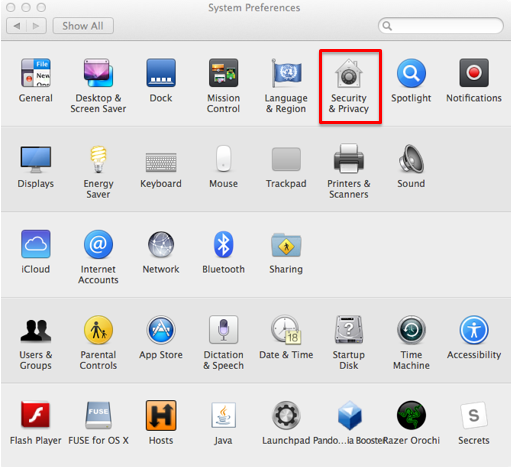
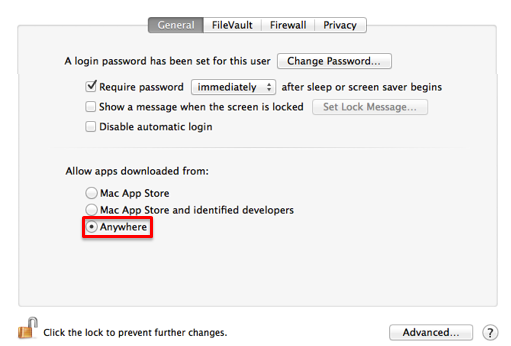
Open up your "System Preferences" and head to "Security & Privacy."
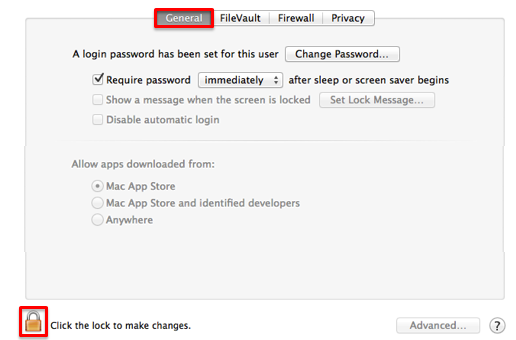
In the "General" tab, you'll see a section called "Allow apps downloaded from." In order to change these settings, you'll have to click on the lock icon below and input your admin password. Once that's out of the way, you can choose between three options:

Allowing Third Party Applications to Install on a MacBook

Some applications are not signed by Apple and will not be able to be installed. If you trust the application and know you want to install it, follow these steps to allow third party apps to install.
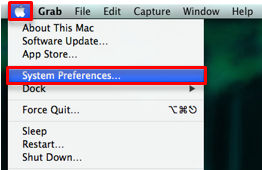
  1. Open "System Preferences" by clicking on the Apple icon and choosing that option.
  2. Select "Security & Privacy" from the "System Preferences" window.
  3. Select the "General" tab, and select the lock in the lower left corner to allow changes. 
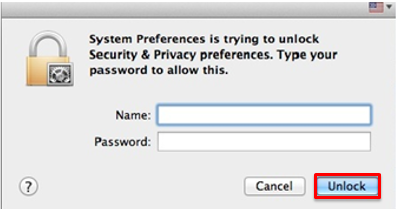
  4. Enter your computer username and password, then select "Unlock."
  5. In the "Allow apps downloaded from:" section, select the radio button to the left of "Anywhere."
  6. Close the window. You can now install unsigned applications that you trust. 
    • For security reasons, you may want to repeat this process checking "Mac App Store" on step five in order to turn this feature back off.